
ADS-B Data Import for GA Owners: Setup and Verification

ADS-B Data Import for GA Owners: Setup and Verification
To get ADS-B flight logs automatically into your maintenance system, you need three things working together: a wireless avionics datalink on the aircraft, an active PlaneSync cloud upload subscription, and sharing permissions enabled in flyGarmin.com to push data to your maintenance platform. That’s the whole chain. Every troubleshooting problem you’ll encounter traces back to one of those three links being broken.
Here’s what you need confirmed before your first automatic import:
- Avionics datalink: A Garmin GDL 60, Flight Stream 510, or compatible G3X Touch/AXIS/GI 275 upload path installed and enabled on the aircraft
- Cloud upload subscription: An active PlaneSync subscription tied to your flyGarmin.com account
- Third-party sharing: Opt-in sharing enabled in flyGarmin.com for your chosen maintenance platform
Pro Tip: Before calling your installer, check your avionics panel for a GDL 60 or Flight Stream 510. If you see either unit, you’re likely one subscription and a few permission toggles away from live imports.
Key Takeaways
Automated ADS-B flight-log imports require three confirmed elements: a compatible avionics datalink, an active PlaneSync subscription, and explicit sharing permissions enabled in flyGarmin.com pointing to your maintenance platform.
| Point | Details |
|---|---|
| Three-step enablement | Datalink hardware, PlaneSync subscription, and flyGarmin sharing permissions must all be active before imports flow. |
| Permissions are not automatic | Sharing to a maintenance platform is an explicit opt-in in flyGarmin.com — hardware alone does not push data. |
| Verify before you rely | Run a test flight and confirm the upload appears in flyGarmin and your maintenance platform before trusting automation. |
| Subscriptions and firmware matter | PlaneSync requires an active subscription; outdated GDL 60 or Flight Stream firmware silently blocks uploads. |
| Squawkfree closes the loop | Flight Intelligence auto-imports hours and cycles into AD tracking and maintenance logs, with logbook digitization for legacy records. |
Table of Contents
- What does an ADS-B data import actually include?
- What hardware, subscriptions, and connectivity do you need?
- How to set up automated ADS-B flight-log imports
- How imported logs map to maintenance records and AD tracking
- Permissions, privacy, and operational limits to review first
- How to verify imports and fix the most common problems
- Implementation checklist and suggested timeline
- How Squawkfree accepts ADS-B imports and supports your maintenance workflow
- What automation actually changes for operators
- Squawkfree: your maintenance platform for ADS-B imports
- Sources
What does an ADS-B data import actually include?
The phrase “ADS-B data import” is commonly used in GA maintenance circles, but the more precise term is avionics flight log upload, since the data pipeline captures far more than raw ADS-B position signals. What actually transfers through the PlaneSync/flyGarmin pathway includes:
- Flight hours and engine time (the fields that drive most AD compliance calculations)
- Flight cycles (takeoffs and landings, critical for cycle-limited components)
- GPS track and route data (departure/arrival airports, timestamps)
- Attitude and heading data from compatible avionics
- Select engine parameters when an EIS (Engine Indication System) or GI 275 with engine monitoring is installed
- CO levels on aircraft equipped with CO monitoring
For maintenance and AD tracking, hours, cycles, and timestamps are the fields that matter most. Engine parameter data adds value for trend monitoring and predictive scheduling. GPS tracks let you attach geographic context to a flight record, which is useful when correlating with Service Difficulty Reports.
Telemetry depth varies by avionics configuration. A basic GDL 60 installation captures position and time. Add a GI 275 with EIS or a G3X Touch with engine monitoring, and the upload includes richer engine data. Know your panel before you assume what will populate automatically.
What hardware, subscriptions, and connectivity do you need?
Not every aircraft with an ADS-B transponder qualifies for automated imports. Having an ADS-B Out transponder alone is not sufficient. You need an avionics gateway or datalink device that can package and transmit the flight log wirelessly after landing.
Compatible hardware paths:
- Garmin GDL 60: The primary cellular datalink for PlaneSync uploads. Connects to compatible Garmin avionics and transmits flight logs automatically after landing when LTE coverage is available.
- Garmin Flight Stream 510: A wireless gateway that bridges Garmin avionics to Bluetooth and Wi-Fi devices; supports upload paths through the Garmin Pilot app.
- G3X Touch / AXIS / GI 275: G3X Touch users can offload data automatically via the Garmin Pilot app and Connext cloud, removing the need for manual SD-card transfers on many installations.
Subscription and connectivity requirements:
- An active PlaneSync subscription is required for GDL 60 automatic uploads. Without it, the hardware won’t transmit.
- Uploads happen on the ground, after landing, when LTE coverage is present. Hangars with poor cellular signal can delay or block uploads.
- A flyGarmin.com account is required to manage sharing permissions and view upload history.
Pro Tip: Ask your installer to confirm the firmware version on your GDL 60 or Flight Stream 510 before activating PlaneSync. Outdated firmware is the most common reason uploads fail silently after setup.
Garmin’s PlaneSync announcement confirms that compatible avionics paired with an active subscription enable automatic on-ground uploads, with third-party sharing as an explicit opt-in step.
How to set up automated ADS-B flight-log imports
Follow these steps in order. Skipping ahead is the fastest way to end up with uploads that never reach your maintenance platform.
- Confirm your avionics model and serial number. You’ll need this for PlaneSync registration and tail number mapping.
- Install or enable your datalink. If a GDL 60 or Flight Stream 510 isn’t already installed, schedule an avionics shop visit. G3X Touch owners should confirm Connext cloud is active in Garmin Pilot settings.
- Activate a PlaneSync subscription at flyGarmin.com. Link it to your aircraft’s tail number exactly as it appears in FAA registration records.
- Connect your flyGarmin.com account to your maintenance platform. Garmin’s integration ecosystem now includes multiple maintenance and analysis services; your platform should appear in the flyGarmin integrations list.
- Enable third-party sharing in flyGarmin.com under your account’s integration settings. This is an explicit opt-in, not automatic. Many owners complete steps 1–4 and assume data is flowing, only to find sharing was never toggled on.
- Configure your maintenance platform to accept incoming imports. In Squawkfree, this means linking your aircraft registration and enabling the Flight Intelligence add-on.
- Fly a test flight and verify. After landing, check flyGarmin.com for a new upload entry, then check your maintenance platform for the imported log.
Common failure points by step:
- Steps 3–4: Tail number formatted differently between flyGarmin and your maintenance platform (e.g., “N12345” vs. “12345”)
- Step 5: Sharing not enabled — the most frequently missed step
- Step 7: No LTE at your parking spot; the upload queues and transmits when coverage returns
Pro Tip: After your test flight, wait 15 minutes on the ground before checking for the upload. The GDL 60 needs a moment to establish an LTE connection and complete the transfer.
How imported logs map to maintenance records and AD tracking
Once imports are flowing, the data does real work. Hours and cycles from each flight accumulate automatically against your aircraft’s maintenance record. A system like Squawkfree uses those running totals to calculate next-due values for repetitive airworthiness directives, so you always know where you stand without manually updating a spreadsheet after every flight.
Practical examples of how the mapping works:
- Tach/Hobbs equivalents: Imported engine time populates the hours field in each maintenance record, replacing manual entry.
- AD compliance evidence: Flight timestamps attach to compliance records, giving you a documented trail of when hours were accumulated.
- School scheduling: In a flight school environment, imported flight data matches against reservations, so dispatch records and maintenance logs stay synchronized.
Research from DLR demonstrated that ADS-B-derived layover data could be correlated with Service Difficulty Reports with 93% mapping accuracy, confirming that flight data is reliable enough to anchor maintenance event records. For predictive maintenance, that correlation becomes a scheduling tool, not just a compliance record.
One important limit: imported data supports the record, but it doesn’t replace a mechanic’s sign-off. FAA maintenance records still require an authorized signature for completed work. Automation handles the hours tracking; the human verification stays where it belongs.
Permissions, privacy, and operational limits to review first
Enabling sharing in flyGarmin.com is an opt-in decision, and it’s worth understanding exactly what you’re sharing before you toggle it on.
- Log in to flyGarmin.com and navigate to the integrations or connected services section.
- Review which services have access to your flight data. Each integration is listed separately; you can revoke access per service at any time.
- Check data retention settings. Garmin’s cloud stores uploaded flight logs, but confirm how long your maintenance platform retains imported records and whether you have export options for backup.
- Set role-based access in your maintenance platform. For co-owners and flight schools, limit who can view or edit imported flight data to avoid accidental record changes.
Pro Tip: For flight schools, assign a dedicated administrator account in flyGarmin.com rather than using an individual instructor’s login. If that instructor leaves, you retain uninterrupted access to the upload history.
Privacy note: flight log data includes GPS tracks and timestamps. For co-ownership arrangements, confirm all owners agree on which services receive that data before enabling sharing. Understanding your FAA recordkeeping obligations alongside your sharing settings keeps you compliant on both fronts.

How to verify imports and fix the most common problems
After setup, run through this diagnostic checklist before assuming automation is working reliably:
- Avionics logged the flight: Confirm in your avionics unit that the flight was recorded internally.
- PlaneSync upload visible in flyGarmin: Log in and check the upload history for your tail number. A missing entry here means the datalink didn’t transmit.
- Sharing is active: Verify the maintenance platform integration is still toggled on. Sharing can be inadvertently disabled during account updates.
- Tail number matches exactly: Compare the registration format in flyGarmin against what your maintenance platform expects.
- Maintenance platform import log: Check for any error messages on the receiving end.
Common fixes:
- No upload in flyGarmin: Update GDL 60 or Flight Stream firmware, then re-authenticate the PlaneSync subscription.
- Upload present but not in maintenance platform: Re-enable sharing, then use the platform’s “reprocess” or “re-import” function for the missing flight.
- Tail number mismatch: Correct the format in one system so both sides match FAA registration exactly.
When contacting support, gather your flyGarmin upload timestamp, the tail number as it appears in both systems, and a screenshot of the sharing settings page. That information cuts resolution time significantly.
Implementation checklist and suggested timeline
For a single-owner aircraft:
- [ ] Confirm avionics model and datalink hardware
- [ ] Schedule installer visit if GDL 60 or Flight Stream 510 is not yet installed
- [ ] Activate PlaneSync subscription and link tail number
- [ ] Connect flyGarmin.com to maintenance platform
- [ ] Enable third-party sharing in flyGarmin.com
- [ ] Configure maintenance platform to accept imports
- [ ] Complete test flight and verify end-to-end
- [ ] Review permissions and backup settings
Suggested timeline (single aircraft):
- Week 1: Installer visit and hardware confirmation
- Week 2: Subscription activation and account linking
- Week 2–3: Test flight and verification
- Week 3: Review permissions and train any co-owners
For flight schools: Roll out on one aircraft first. Confirm the full import chain works, train your chief dispatcher on verification steps, then replicate the configuration across the fleet. Trying to onboard all aircraft simultaneously makes it harder to isolate problems when they appear.
How Squawkfree accepts ADS-B imports and supports your maintenance workflow
Squawkfree is built to be the receiving end of the flyGarmin pipeline. Once your avionics datalink and PlaneSync subscription are active and sharing is enabled, Squawkfree’s Flight Intelligence add-on accepts incoming flight logs and maps them automatically to your aircraft’s maintenance record.
What Squawkfree provides:
- Flight Intelligence auto-import: Hours, cycles, and timestamps populate your maintenance log without manual entry after every flight.
- FAA AD search and tracking: Imported hours and cycles feed directly into AD compliance calculations, so due items update automatically as flights accumulate.
- Automatic hours/cycles mapping: Engine time from EIS-equipped aircraft maps to the correct maintenance fields, including interval-based ADs.
- Human-verified OCR digitization: For legacy paper logbooks, Squawkfree’s logbook digitization service combines OCR scanning with human review to bring historical records into the same system as your live imports.
Onboarding requirements: Link your flyGarmin.com account, confirm your aircraft’s FAA registration in Squawkfree, and activate the Flight Intelligence add-on. Most owners see their first imported flight log within 24 hours of completing those steps.
Pro Tip: If you have paper logbooks going back years, digitize them before activating Flight Intelligence. Starting with a complete historical record means your AD calculations are accurate from day one, not just from the date you went digital.
What automation actually changes for operators
Automated ADS-B flight-log imports sound like a back-office efficiency gain, but the real shift is in how you relate to compliance. Before automation, AD tracking was a manual reconciliation task: pull the logbook, count the hours, check the AD list, update the spreadsheet. That process introduced lag and, occasionally, errors.
What surprises most operators after going live isn’t the time saved, it’s the visibility. When hours update automatically after every flight, you stop discovering that an inspection is due at the worst possible moment. The common initial friction is usually a connectivity gap at a remote parking spot or a tail-number formatting mismatch, both of which surface during the test flight phase and are straightforward to fix. The advice that holds up: pilot the automation on one aircraft, verify the full chain, then scale. Rushing a fleet-wide rollout before the first aircraft is confirmed working creates a false sense of coverage that’s harder to unwind than a slow, methodical rollout.
Squawkfree: your maintenance platform for ADS-B imports
Squawkfree removes the manual work that sits between your avionics and your compliance records. Where other platforms require you to export, format, and upload flight data yourself, Squawkfree’s Flight Intelligence feature accepts the flyGarmin feed directly and maps it to your AD tracking, maintenance history, and scheduling tools automatically.
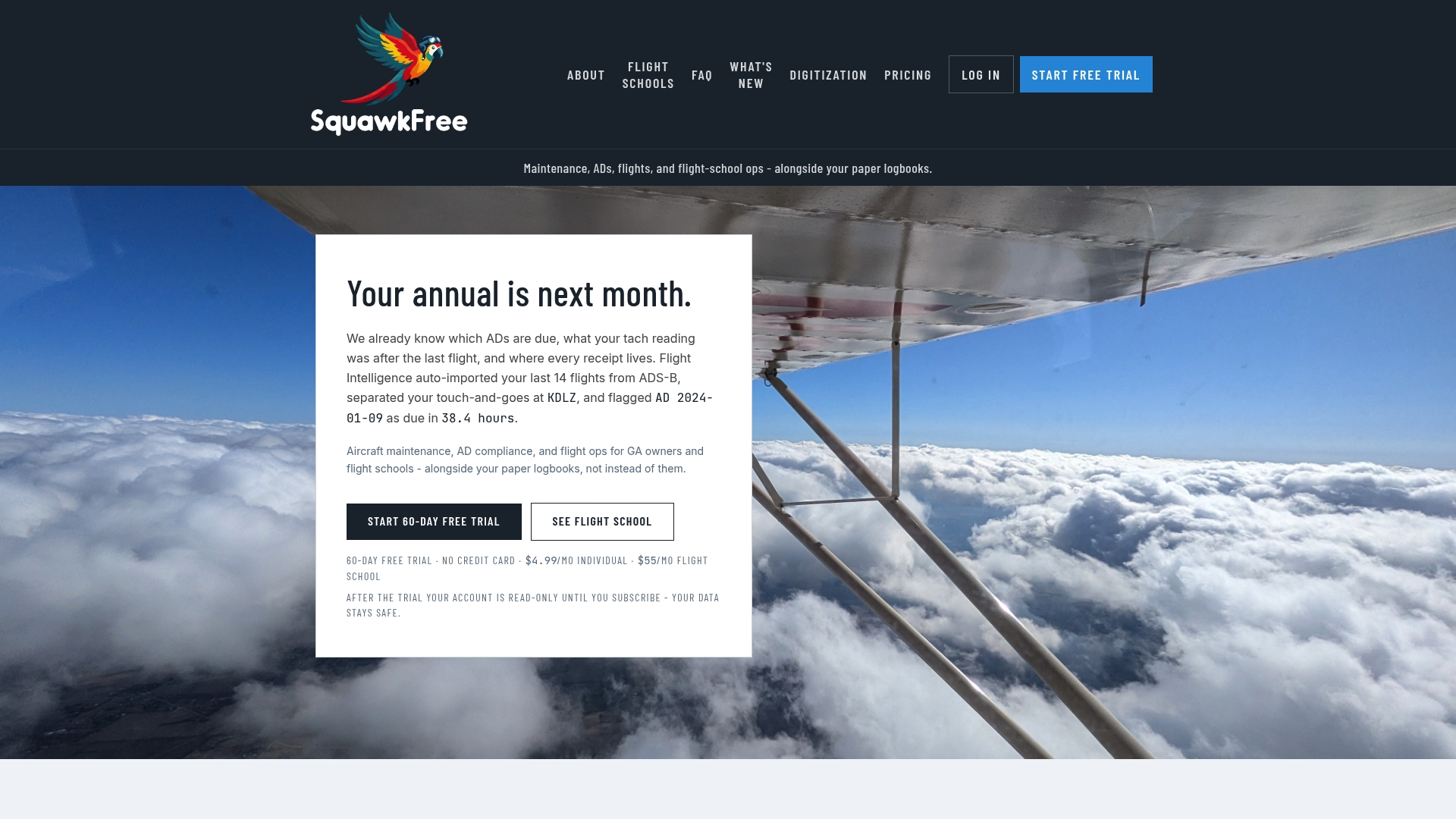
For flight schools, that means dispatch records and maintenance logs stay synchronized without a coordinator manually reconciling them. For individual owners and co-owners, it means your AD due dates update after every flight without opening a spreadsheet. The 60-day free trial gives you enough time to confirm the full import chain is working and see how hours-based AD calculations change your compliance workflow. Start your free trial at Squawkfree and connect your flyGarmin account during onboarding.
Sources
- Garmin expands service integrations to simplify and automate aircraft flight logging with PlaneSync
- Avbrief
- DLR study combining OpenSky ADS‑B data and Service Difficulty Reports for MRO analysis
Recommended
No credit card required · read-only after trial