
6 Steps to Set Up Instructor Availability for Flight School Admins

6 Steps to Set Up Instructor Availability for Flight School Admins
Open the instructor’s availability tool and create a named schedule with regular weekly hours, any split-day blocks, and date-specific overrides. Link that schedule to the correct appointment type, then enable two-way calendar sync. An admin usually sets the recurring hours while the instructor confirms them; test the setup by booking a slot as a client to see if it shows up correctly.
TL;DR:
- Correctly linking schedules to appointment types is essential, as failure to do so leaves availability invisible to clients even if properly configured.
- Time zone mismatches are the most common setup error, causing instructors to appear available at incorrect hours and leading to booking conflicts.
- Using global blocks for multi-day absences ensures instructors are unavailable across all their schedules simultaneously without risking overlaps or inconsistencies.
- Sync issues often stem from read-only permissions or visibility settings, which prevent external calendars from accurately blocking time slots.
- Pairing instructor scheduling with aircraft and component availability is critical in flight schools to prevent bookings on aircraft that are out of service or undergoing maintenance.
Table of Contents
- Prerequisites and Permissions Before You Start
- What Are the Different Layers of Availability?
- How Do You Set Up Instructor Availability Step by Step?
- Setting Up Two-Way Calendar Sync
- How Linking Schedules to Appointment Types Works
- Best Practices for Managing Instructor Schedules
- How Do You Fix Common Instructor Scheduling Problems?
- How SquawkFree Extends Availability Setup for Flight Schools
- What Should Admins Prioritize First?
- A Scheduling Tool That Also Watches Your Aircraft
- Sources
Prerequisites and Permissions Before You Start
Before you touch a single calendar block, check the foundation. Setup fails most often because someone skipped account prep rather than because the scheduling tool is confusing.
You need admin-level access to edit availability, plus a clear answer to who else gets that access. Verify these before making changes:
- The admin account has permission to create, edit, and delete availability schedules across instructors, not just view them.
- Every instructor has a complete profile, including assigned locations, so their schedule attaches to the right venue.
- The system-wide time zone matches your organization’s actual operating zone, and any instructor working across time zones has their own setting confirmed.
- You’ve decided whether instructors can manage their own availability schedules or whether all changes route through an admin, and that permission is set explicitly rather than assumed.
Skipping the time zone check is the most common early mistake. An instructor set to the wrong zone will show as available at hours that don’t actually work for them, and clients will book into a gap that doesn’t exist.
What Are the Different Layers of Availability?
Instructor availability isn’t one setting. It’s a stack of layers, each solving a different problem, and knowing which layer to touch saves you from breaking a schedule you didn’t mean to change.
Regular hours are the recurring weekly pattern, like Monday through Friday, 9 a.m. to 5 p.m. Change these only when the instructor’s baseline schedule actually shifts long term.
Overrides handle date-specific exceptions without touching the recurring pattern underneath. A substitute teaching a single Thursday, or an instructor starting two hours late one day, belongs here.
Blocks apply across every schedule an instructor has, which makes them the right tool for holidays, sick leave, or any stretch where the instructor is unavailable everywhere, not just on one calendar.
Some organizations also give an instructor multiple schedules, one for each venue or for a morning/afternoon split at different locations. Penn State’s scheduling guidance recommends separate availability per course or service when the complexity warrants it, rather than forcing everything into one messy calendar. Most schedules also carry an end date option, useful for semester-based or seasonal instructors who won’t need the schedule indefinitely.

How Do You Set Up Instructor Availability Step by Step?
This is where the pieces come together. Follow the order below and you’ll avoid the most common setup mistakes: mismatched blocks, orphaned overrides, and schedules that never get linked to a bookable service.
- Open the instructor’s profile or the central availability tool and click to add a new schedule. Name it with a convention that survives six months from now, something like “Main Hangar, Flight Lessons, Weekday AM.”
- Set the regular weekly hours. If the instructor works a split day, add multiple blocks rather than one long window. An instructor available 8 a.m. to 11 a.m. and again 1 p.m. to 5 p.m. needs two separate blocks in the same schedule, since split schedules with multiple daily intervals are how most systems represent that pattern accurately.
- Choose recurrence and date range. Decide between Never (runs indefinitely), On a specific end date, or After a set number of occurrences. Semester instructors usually want an end date; permanent staff usually want Never.
- Create overrides for one-off changes. Pick the specific date, then mark it unavailable or assign different hours. Overrides sit on top of the regular schedule without altering it.
- Block time across all schedules for multi-day absences. Vacation, illness, or a training week away should use a global block so the instructor disappears from every calendar at once, not just one.
- Link the schedule to the correct appointment type and save. An availability schedule that isn’t linked is invisible to booking, no matter how carefully you built it.
Pro Tip: Keep the recurring weekly hours stable and route every exception through an override instead. Editing the base schedule directly to handle a one-time change tends to erase the original intent, and you’ll be rebuilding it from memory months later.
Once you save, run a validation pass. Preview the booking flow as a client would see it, confirm the calendar invite or iCal file generates correctly, and check the instructor’s own view to make sure what they see matches what you configured.
Setting Up Two-Way Calendar Sync
Manual blocking works until someone forgets to do it. Two-way calendar sync with Google Calendar or Office 365 removes that risk by letting a personal event automatically close a booking slot, and it eliminates the need to maintain two calendars that inevitably drift out of sync, according to TeamUp’s setup documentation.
Sync problems tend to cluster around a few predictable causes:
- Time zone mismatches between the external calendar and the scheduling system, which shift blocks by an hour or more without any error message.
- Read-only permissions granted instead of read-write, so busy events show up but never actually remove the slot from booking.
- Calendar visibility settings that hide event details, which can prevent the sync from recognizing a block as busy time.
Test the connection before trusting it: create a busy event on the external calendar and confirm it disappears from the booking interface within a few minutes. If it doesn’t, check sync direction first. TimeTamer’s guide on preventing calendar double booking is a useful reference if you’re troubleshooting a sync that appears connected but isn’t actually blocking anything. When sync genuinely can’t be configured, fall back to manual blocks rather than leaving a gap.
How Linking Schedules to Appointment Types Works
An availability schedule does nothing for bookings until it’s linked to an appointment type. This is the step admins forget most, and it’s the reason a perfectly configured schedule still shows “no availability” to clients.
Linking happens either inside the Instructor Availability tool or on the appointment type’s own edit page, depending on your platform. Without that connection, the appointment type has no idea which hours belong to which instructor.
- Drop-in appointment types often pull from any linked schedule automatically, while scheduled types may require an explicit instructor selection per booking.
- Preview the public booking page after linking to confirm the expected time slots actually appear.
- Run a test booking end to end rather than trusting the preview alone; some visibility bugs only surface at the actual booking step.
- If a schedule seems linked but isn’t showing, unlink and relink it, then double-check the location assigned to both the schedule and the appointment type match.
Best Practices for Managing Instructor Schedules
A handful of habits separate organizations that scale smoothly from ones that fight their own calendar every week.
Naming conventions matter more than they seem. Include venue and purpose in every schedule name, since a generic label like “Schedule 1” becomes unmanageable once you have a dozen instructors across multiple locations.
Buffer time and minimum notice protect instructors from back-to-back bookings with no breathing room, and they cut down on last-minute cancellations. Doodle’s scheduling guidance recommends setting meeting length, buffer time, and a minimum notice window as a baseline, not an afterthought.
- Standardize how overrides and blocks get approved, and keep a simple audit trail of who changed what.
- Train instructors on self-service permissions before turning them on, since self-service reduces admin workload only when instructors understand the rules around overrides and sync.
- Build a no-show policy alongside your availability rules so buffers and cancellations reinforce each other; Squawkfree’s guide to setting a no-show fee policy covers how to structure one that instructors and clients both respect.
Pro Tip: Set your override and leave policy in writing before your second instructor joins the roster. Admins who wait until they have five or six instructors to formalize the rules spend far more time untangling inconsistent exceptions than they would have spent writing a one-page policy on day one.
How Do You Fix Common Instructor Scheduling Problems?
Most support tickets trace back to one of four issues. Run through these checks in order before assuming something is broken.
- Instructor missing from booking options: confirm their account status is active, verify at least one schedule exists and is saved, and check they’re assigned to the correct location.
- Double bookings appearing: check the direction of calendar sync (read-write, not read-only), and look for overlapping schedules or an appointment type linked to more than one conflicting calendar.
- Bookings invisible to clients: verify the schedule is actually linked to the appointment type, confirm the location matches, and check that booking visibility settings haven’t hidden the slot from the public page.
- Overrides not applying: confirm the override date matches exactly, and check it was created under the active schedule rather than an old or duplicate one.
How SquawkFree Extends Availability Setup for Flight Schools
Instructor availability means something different in a flight school. An instructor can be fully free on their calendar and still unavailable, because the aircraft they need is down for an annual inspection or waiting on an AD compliance check.
Pairing instructor scheduling with aircraft and component availability closes that gap. Squawkfree’s component time tracking approach aligns instructor hours with maintenance windows so a booking never gets confirmed against a plane that won’t be airworthy that day. Flight Intelligence auto-imports flight data, which keeps real aircraft utilization visible instead of relying on a logbook someone forgot to update.
- Cross-check instructor schedules against maintenance windows before opening booking slots.
- Use role-based permissions so dispatchers can adjust aircraft assignments without touching instructor pay or certification records.
- Track component time alongside instructor hours to avoid double-booking either the aircraft or the person flying it.
- Review both calendars together weekly, not just when a conflict already happened.
What Should Admins Prioritize First?
If you’re rolling this out fresh, fix time zones and permissions before anything else. Turn on self-service in stages, starting with your most reliable instructor. Escalate to IT the moment calendar sync shows a read-only flag instead of read-write.
— Trent
A Scheduling Tool That Also Watches Your Aircraft
For flight schools, instructor availability is only half the equation. Squawkfree pairs scheduling with maintenance and AD tracking, so you’re not just checking whether an instructor is free, you’re confirming the aircraft they need is airworthy and available too. That’s a distinction most general scheduling tools never account for.
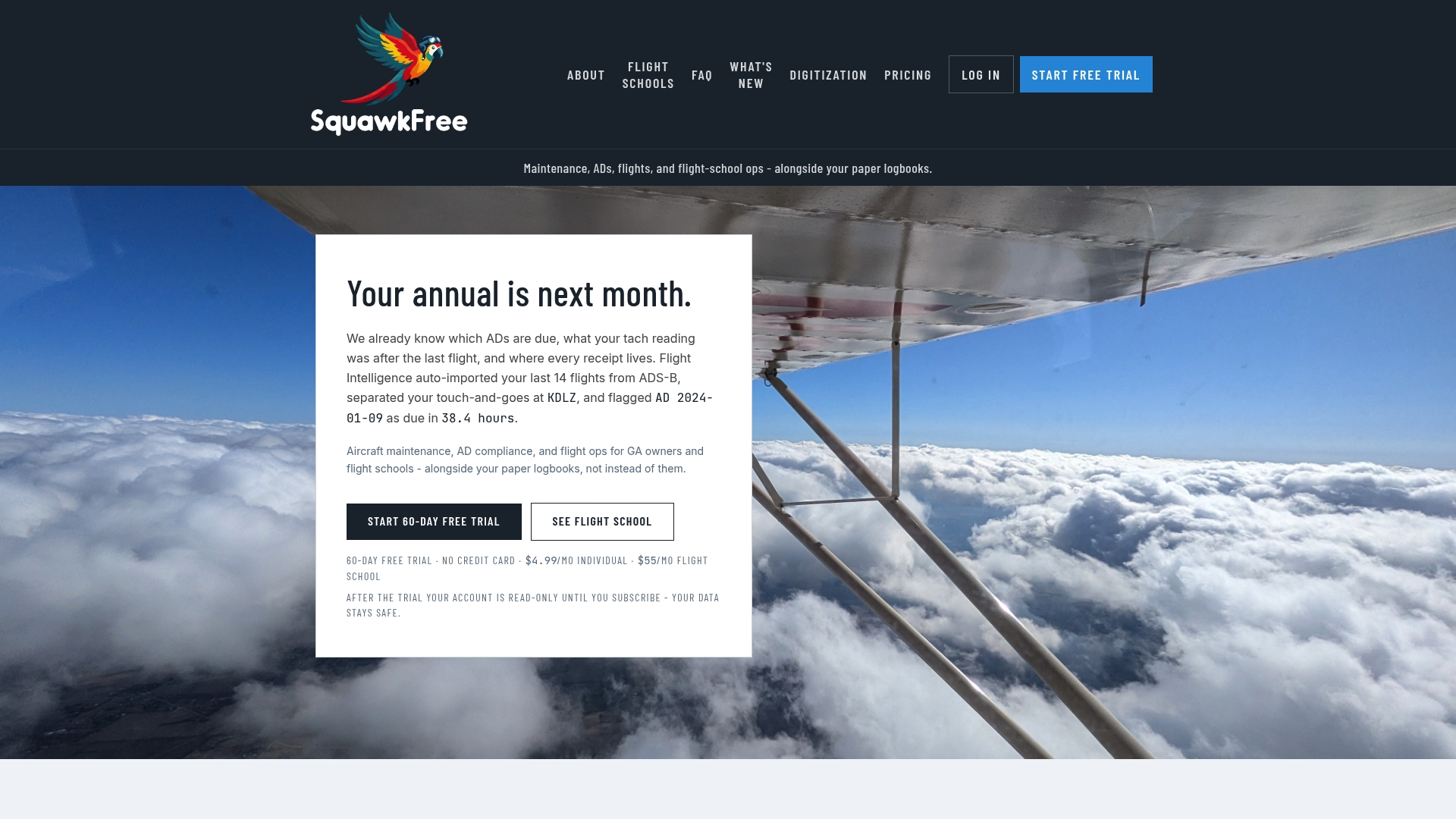
Flight data auto-import from ADS-B can keep maintenance records and scheduling calendars aligned with recent flight activity instead of relying on outdated logbooks. Combined with role-based access for instructors and dispatchers, it cuts the back-and-forth that usually comes with juggling two separate systems for people and planes. If your flight school is still managing instructor calendars and aircraft maintenance in different tools, visit Squawkfree to see how the two connect, and start a trial to test it against your own schedule this week.
Sources
- How to manage an instructor’s Availability Schedule/s (w/ VIDEO) | TeamUp Help Centre
- How to Set Appointment Availability (Penn State KB)
- A quick guide to scheduling office hours with Doodle’s Booking Page
Recommended
No credit card required · read-only after trial